
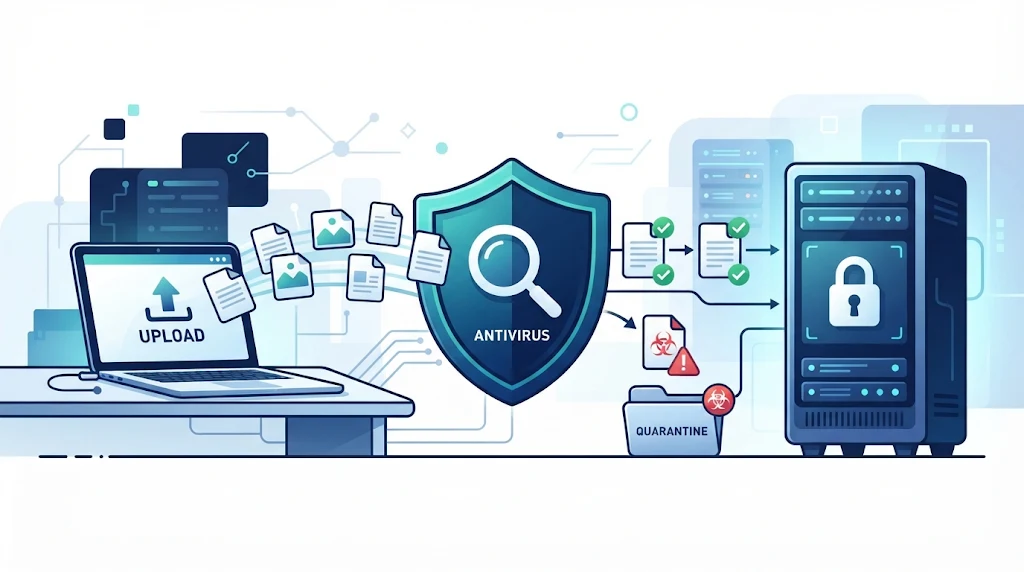

Scanning uploaded files antivirus server side helps developers detect malicious files before they reach users or trusted systems. The process combines file validation, private quarantine storage, and malware detection tools such as ClamAV. Browser-side checks cannot provide enough protection because attackers can bypass them and send files directly to backend endpoints.
At Secure Coding Practices, we focus on practical methods for building safer upload workflows, from checking file contents to handling scan results and blocking unsafe files. Each stage plays a role in protecting application data. Keep reading to see how to build a reliable server-side scanning process.
Quick Reads: 3 Essentials for Safer File Uploads
Server-side antivirus scanning protects applications by checking uploaded files before users can access them. Keep these three security practices in place:
- Validate every upload: Check file types, MIME types, file signatures, and file sizes before scanning.
- Quarantine files until approved: Store unverified uploads privately and block access until scanning finishes.
- Handle scan results safely: Reject infected files, keep failed scans blocked, and monitor scanning errors.
What is server-side antivirus scanning for uploaded files?
Server-side antivirus scanning checks files on the backend before an application allows users to view or download them.
As highlighted by Microsoft Learn
“On-upload malware scanning in Defender for Storage automatically scans blobs when you upload or modify them, so you get fast detection of malicious content.” – Microsoft Learn
Why does this matter? Browser checks can be bypassed. An attacker can send a request directly to an upload endpoint without using the website’s normal upload form. The backend must therefore inspect every file itself.
A typical process has four stages: upload, quarantine, scan, and release. First, the application receives the file. Then it checks the file and places it in private storage. An antivirus tool, such as ClamAV, scans the content for known threats.
If the scan returns a clean result, the application can move the file into approved storage. If malware is detected, the file stays blocked.
We teach this as part of a wider secure coding practice. Antivirus scanning is one layer of protection. File validation, storage permissions, and download controls must support it. A successful upload isn’t a security approval. Keep those two events separate.
Why should you scan uploaded files before making them available?
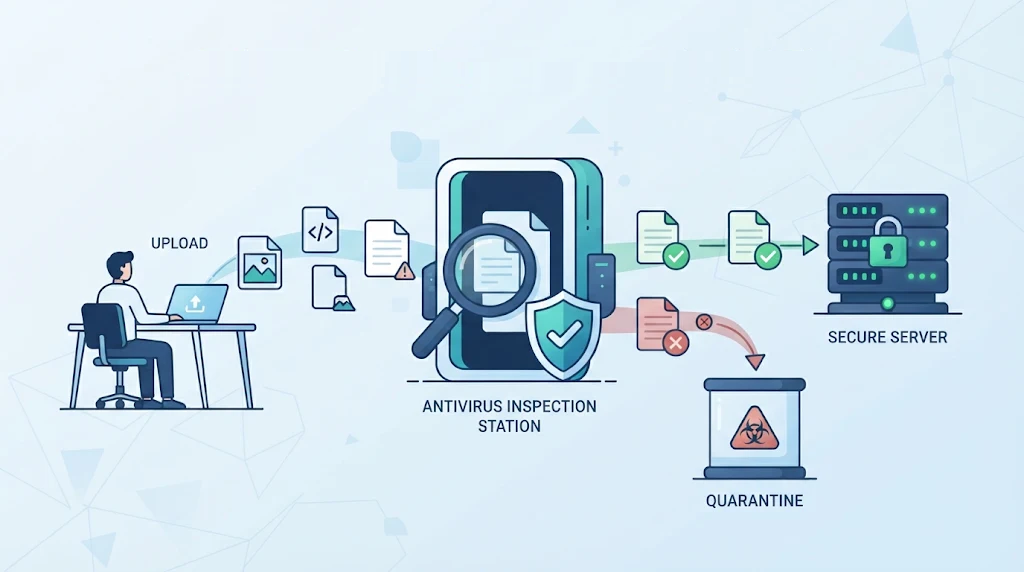
An uploaded file can become a security risk if an application makes it available before checking its contents.
Think about the places where users can upload files. Profile photos, support attachments, documents, and public submission forms all create possible entry points for malicious content.
The OWASP file upload cheat sheet recommends using several controls to handle uploaded files safely. These measures are essential for preventing malware-related file upload vulnerabilities. Checking the extension alone isn’t enough. An attacker can rename an executable file and give it a familiar image extension.
Common upload threats include:
- Malware hidden in documents or archives.
- Files with false extensions or MIME types.
- Archives that consume too much memory or storage.
- Malicious content targeting document processing software.
- Executable files disguised as normal attachments.
What happens if scanning takes too long?
An infected file could become available before the scanning worker checks it. It might also enter another system that processes documents automatically.
We avoid this problem by linking file access to its scan status. Every new upload stays pending until the backend receives an acceptable result. Even a short delay can expose an application to unnecessary risk.
How does a secure server-side file scanning workflow work?
Credits: Learn Tech Together
A secure upload workflow keeps untrusted files away from approved storage until the antivirus scanner returns an acceptable result.
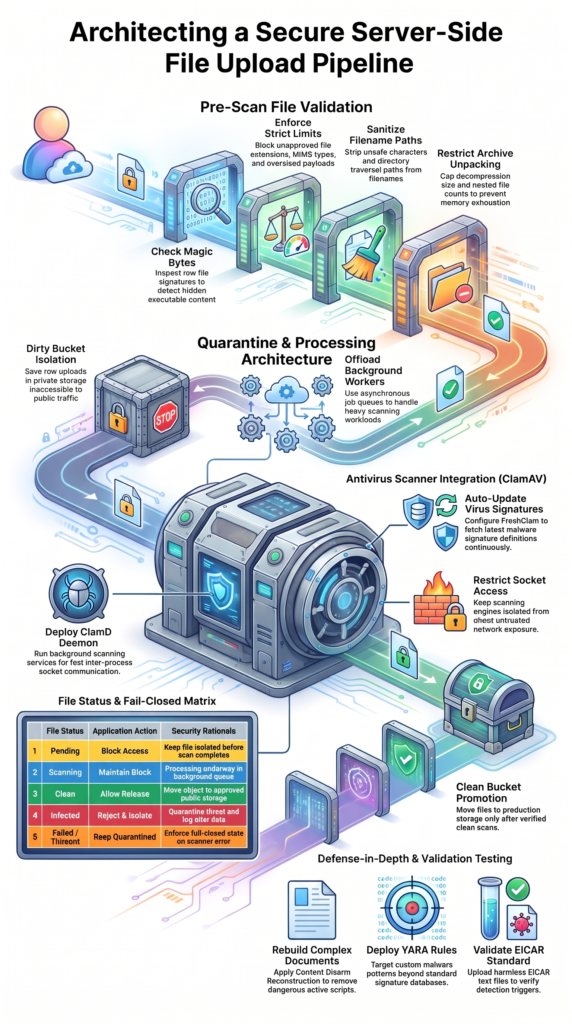
We recommend using eight clear stages when validating and securing file uploads. This makes the process easier to build, test, and monitor during development.
The application first receives the file and checks whether it meets the upload rules. It then saves the file in private quarantine storage and sends it to the scanning engine. Once scanning finishes, the backend evaluates the result.
| File status | Application action |
| Pending | Keep access blocked |
| Scanning | Wait for the result |
| Clean | Allow approved access |
| Infected | Reject or isolate |
| Failed | Keep in quarantine |
The application should record each status change. This helps developers understand where a file is in the process and whether a scanning job needs attention.
We use separate statuses because uploading a file doesn’t mean scanning has finished. These records also help teams investigate problems later.
Keep the scanner version and signature update details in the logs. They can help explain why a file received a particular result.
How can you validate uploaded files before antivirus scanning?
File validation should happen before antivirus scanning. It helps the backend reject files that don’t match the application’s upload rules.
We treat validation and malware detection as separate security checks. Validating file type extensions securely helps prevent attackers from disguising harmful files with trusted extensions. A valid PDF can still contain malicious content. Likewise, a harmless file might fail validation because the application doesn’t support its format.
Here are the checks we recommend:
- File extensions: Allow only approved formats.
- MIME types: Check the declared content type.
- Magic bytes: Inspect the file signature.
- File size: Reject uploads above the limit.
- Filenames: Remove unsafe characters and path references.
- Archives: Limit file count and extraction size.
- File structure: Reject malformed or unsupported content.
For example, an attacker might rename an executable file to photo.jpg. If the backend trusts the filename, the file could pass a basic extension check.
The OWASP file upload cheat sheet offers useful guidance on these checks. Our recommended order is clear: validate first, scan second, and release only after both checks pass.
How can you integrate ClamAV into a server-side upload pipeline?
ClamAV is an open-source antivirus engine that developers can use to scan uploaded files on their own infrastructure.
We often recommend looking at ClamAV when teaching backend security because it gives developers a practical way to understand antivirus integration. They can configure the scanner, submit test files, and handle scan results through application code.
A basic setup involves installing ClamAV in a controlled environment, configuring regular signature updates, and connecting the scanning process to private quarantine storage.
The main components have different jobs:
| Component | Purpose |
| clamd | Runs as a scanning daemon |
| clamdscan | Sends files to the daemon |
| clamscan | Runs a standalone scan |
| freshclam | Updates virus signatures |
For example, a Linux server can scan a quarantined file with:
clamdscan /srv/uploads/quarantine/document.pdf
Don’t assume that a command running successfully means the file is clean. The application must inspect the result and handle errors.
We also recommend restricting access to the scanner socket. Keep the scanning service away from untrusted networks, and update its software regularly.
Should you use synchronous or asynchronous antivirus scanning?
Developers can scan files during the upload request or send them to a background worker for later processing. Both methods can protect users. The difference is how the application handles the waiting time.
Synchronous scanning returns a result before the upload request finishes. This can suit smaller files when users need an immediate answer. But large files can increase request times and put pressure on the web server.
Asynchronous scanning moves the work to a separate process. The application saves the file in quarantine, marks it as pending, and sends a job to a background worker.
| Approach | Advantages | Limitations |
| Synchronous | Immediate result | Longer requests |
| Asynchronous | Separate scanning workload | Needs queues and workers |
For larger applications, we usually prefer asynchronous processing. It keeps antivirus work away from normal web requests.
But there’s one rule we never ignore: pending files must remain inaccessible. The worker should also handle timeouts, failed jobs, and duplicate requests. Without these checks, a processing error could leave files in an unclear state.
Test the queue before deployment. A working upload form doesn’t prove the background scanning process is reliable.
Why should you quarantine uploaded files before releasing them?
Quarantine keeps untrusted files away from users while the antivirus engine checks them. One practical design uses two storage areas. The first holds incoming files, while the second contains files that have passed the required checks.
We often explain this as a dirty bucket and clean bucket system. The dirty bucket holds new uploads. The clean bucket stores approved files.
A background worker connects the two. It retrieves a file from quarantine, scans its contents, and checks the result. If the file passes, the application can move it to approved storage.
For example, an upload to object storage can trigger a scanning job. The worker retrieves the object and runs ClamAV. The application then updates the file status or moves the object to its approved location.
But what if scanning fails? Keep the file blocked. Record the reason and retry temporary errors according to your policy. Alert administrators if the scanner remains unavailable.
We also recommend restricting storage permissions. A quarantine folder isn’t secure if public links or application endpoints can still expose its contents. Never release an unverified file.
What happens when antivirus scanning fails or misses a threat?
A secure upload system must block files whenever it cannot confirm that scanning has finished successfully. This is known as a fail-closed approach. If the scanner stops responding, the application must not treat the file as clean.
Here are some common failure cases:
| Problem | Recommended response |
| Scanner unavailable | Keep file quarantined |
| Scan timeout | Mark as incomplete |
| Malware detected | Reject or isolate |
| Worker failure | Retry according to policy |
| Storage transfer error | Block publication |
| Signature update failure | Alert administrators |
There is another issue to consider. Antivirus software cannot detect every threat.
ClamAV uses malware signatures and other detection methods, but unknown or modified threats may escape detection. A clean result isn’t proof that a file is harmless.
For applications that handle sensitive documents, we recommend adding extra protection. Sandbox analysis can help examine suspicious files. Content Disarm and Reconstruction (CDR) can rebuild supported documents to remove potentially dangerous content.
YARA rules can also help identify specific threat patterns. Archive limits and restricted processing permissions add further protection.
Our training approach focuses on this distinction: scanning checks for malware, while secure file handling limits what an uploaded file can do.
How can you test your server-side antivirus scanning implementation?
Testing should cover normal uploads and situations where something goes wrong.
As noted by OWASP
“Try to upload the malicious files to the application and determine whether it is accepted and processed.” – OWASP Web Security Testing Guide
We recommend using the EICAR test file to check whether the antivirus engine detects a standard test signature. It allows developers to test detection without using real malware.
A useful test plan includes:
- Clean file uploads.
- EICAR detection.
- Invalid file extensions.
- MIME type mismatches.
- Oversized files.
- Nested and oversized archives.
- Scanner timeouts.
- Unauthorized quarantine access.
- Failed background jobs.
During our secure development training, we encourage developers to test the full file lifecycle rather than checking only whether the upload form works.
A successful test should confirm that infected files never reach approved storage. It should also prove that scanner failures cannot release unverified uploads.
Check the logs, too. They should record file identifiers, hashes, scan results, timestamps, and relevant errors.
Finally, test multiple uploads at the same time. This can reveal queue problems and duplicate processing that basic tests might miss.
How can developers build secure file upload systems?
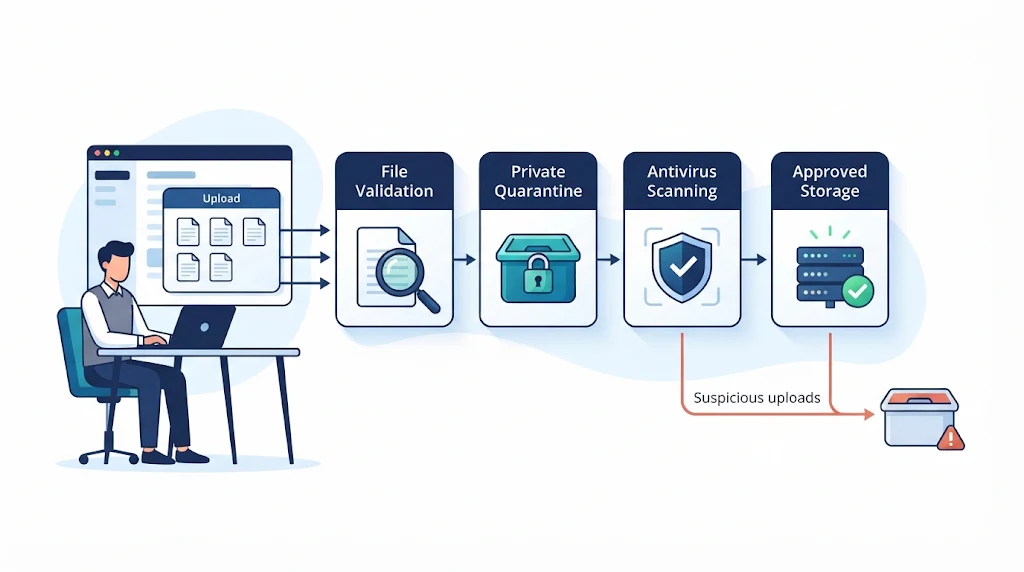
Secure file handling should be part of application development from the beginning.
At Secure Coding Practices, we teach developers to look beyond individual security tools. Security solutions such as Primesec can complement these efforts. However, antivirus software alone cannot fix weak upload validation or poor access controls.
The application must check files at every stage. For example, a document might pass through an upload endpoint, a scanning worker, and a document processing service. Each step needs suitable permissions.
We recommend reviewing the entire upload process during development. Check whether unverified files remain private, whether scan results update correctly, and whether download requests check file permissions.
Our training approach encourages developers to build and test these controls as part of their normal workflow.
Don’t wait until deployment to check file security. Test the upload process while building the application and repeat those tests after major changes. This also makes security issues easier to find before they affect real users.
FAQ
How does server-side file scanning improve file upload security?
Server-side file scanning improves file upload security by checking files before an application stores or shares them. It helps detect malicious content that browser-based checks may miss. Developers should combine antivirus scanning with file validation, private storage, and access controls. These measures reduce the risk of harmful files reaching users or internal systems.
Can antivirus scanning detect every type of malicious file?
No. Antivirus scanning cannot detect every threat, especially new malware or files designed to bypass known detection methods. Developers can add sandbox analysis, deep file inspection, and YARA rules to identify suspicious files. They should also restrict file access, monitor upload activity, and use other security controls to reduce the risk of undetected malware.
What should an application do when it detects an infected uploaded file?
An application should immediately block access to an infected file and keep it separate from approved files. The system should record the scan result, alert administrators, and follow a clear process for removing or investigating the threat. Developers must prevent infected files from being downloaded, opened, or processed by other application components.
Is cloud malware scanning suitable for applications with frequent file uploads?
Cloud malware scanning can help applications that handle large numbers of uploads or use object storage. A scanning service can inspect files without requiring developers to maintain their own antivirus infrastructure. However, teams should consider processing delays, scanning costs, file size limits, data privacy, and integration requirements before choosing this approach.
How often should developers review their file upload security controls?
Developers should review file upload security controls whenever they change upload features, storage permissions, or document processing workflows. Regular testing should cover file type validation, size limits, access restrictions, and scan result handling. Teams should also test how the application responds to scanner failures and new threats to keep uploaded files protected.
Build a Secure File Upload Pipeline from the Start
Server-side antivirus scanning helps prevent malicious uploads from reaching users. However, a successful upload doesn’t mean a file is safe. Validate files on the server, keep unscanned files in private quarantine storage, and release them only after required security checks pass. Monitor scanning failures and control access to approved downloads.
Help your development team build these protections into real applications. The Secure Coding Practices Bootcamp provides hands-on training to help developers apply secure coding methods and protect applications from common threats.
References
- “On-upload malware scanning.” Microsoft Learn, September 22, 2026. Accessed November 7, 2026.
- “Test Upload of Malicious Files.” OWASP Foundation, n.d. Accessed November 7, 2026.